How Lockbox LIMS Handles Review and Approval of PDF Reports
Generate, Review, Approve, and Release Lab Reports with Versioning and a Built-In Change History
What happens between “testing complete” and the moment a client receives a PDF report? In many labs, the answer is a chain of exports, emails, and spreadsheet checks. That process works until a report goes out with the wrong collection date, a new result is added after release, or someone asks which version of a report a client actually received.
Lockbox LIMS addresses this with the Released Report feature. It routes every PDF report through a formal review and approval workflow, tracks changes to the underlying data, and keeps a versioned record of every report your lab has issued. In this post, we walk through how PDF review and approval works, from generating a report to releasing it, and what happens when data changes or a result is added later.
Click here to watch the end-to-end Released Reports demo video
What Is a Released Report in Lockbox LIMS?
A Released Report is a Lockbox record that holds a PDF report together with the information about its review and approval. By default each record stores:
- Status: Pending, Approved, Released, or Rejected.
- Version number: so you always know which iteration of a report you are looking at.
- Release date and time: captured automatically when the report is released.
- Reviewer details: including the final reviewer who approved the report.
- Comments and change history: notes about the report and a record of any data that changed.
- The PDF report itself: attached to the record once it is released.
If a report was amended or addended, the record also links to the original and previous released reports, so the full lineage is visible in one place.
Labs of many kinds need to route reports through review and approval before they go out the door. The requirements differ from one lab to the next: what the report contains, who has to approve it, and where it ends up. Lockbox LIMS is highly configurable, and the Released Report feature is configurable in the same way, so the report design, source object, tracked fields, and review process can be set up to match your lab.
Which Labs Need Report Review and Approval?
- Clinical and diagnostic labs: These labs issue results such as blood tests, pathology results, and genetic testing reports to clinicians or patients. Each report can be routed through a reviewer before release. If a demographic field or result changes while the report is pending, Lockbox flags it and requires the outdated report to be rejected. When a new result is added after release, an addended report shows what was added without replacing the original.
- Quality control labs: QC labs can issue lot certifications and similar reports with a recorded reviewer, a release date and time, and a version number. If a result is corrected later, an amended report links to the original and shows what changed.
- Contract testing and analytical labs: Labs that send Certificates of Analysis (CoAs) to customers can follow the same approval path, so the CoA that was sent is always the one that was reviewed. Once released, the PDF can be shared with customers through the customer portal.
- Any lab that reports outside the lab: Reports can be generated from samples, requisitions, patients, and submissions, not just samples. If your lab sends a formal PDF to someone outside the lab and needs to show who approved it, the released report feature can support it.
How the Review and Approval Workflow Works
In this example we walk through a clinical report for a Sample that underwent testing in Lockbox LIMS.
Step 1: Generate the Released Report
Open a sample record in Lockbox LIMS. The sample record shows the sample status, sample details, any child records such as aliquots, storage details, test results, and completed protocols. Once you have confirmed the sample is ready, click Generate Released Report.
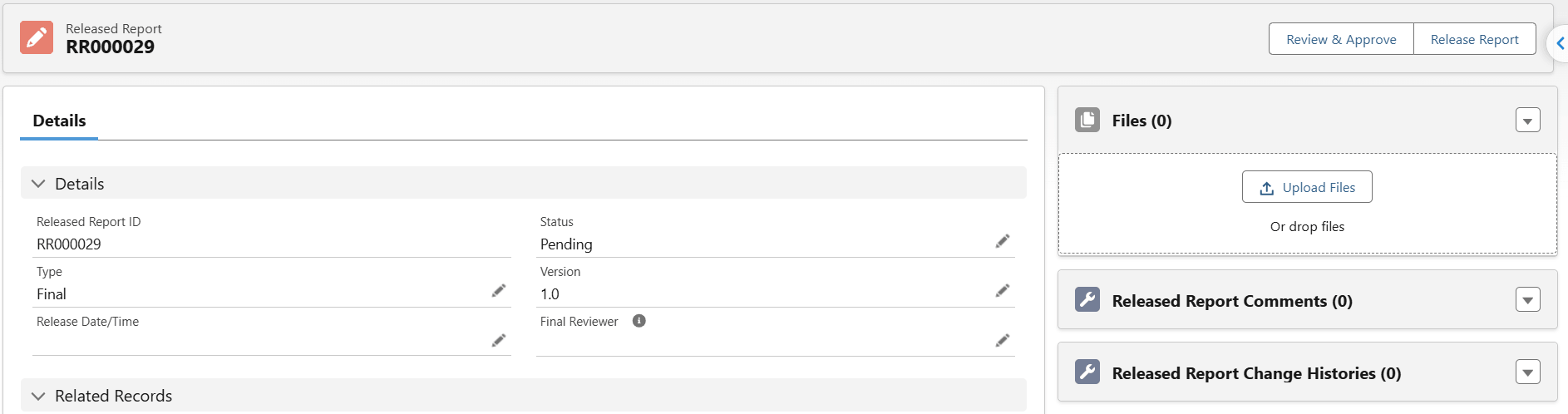
Lockbox creates a new Released Report record with a status of Pending and a version of 1.0.
Step 2: Review the Report Preview
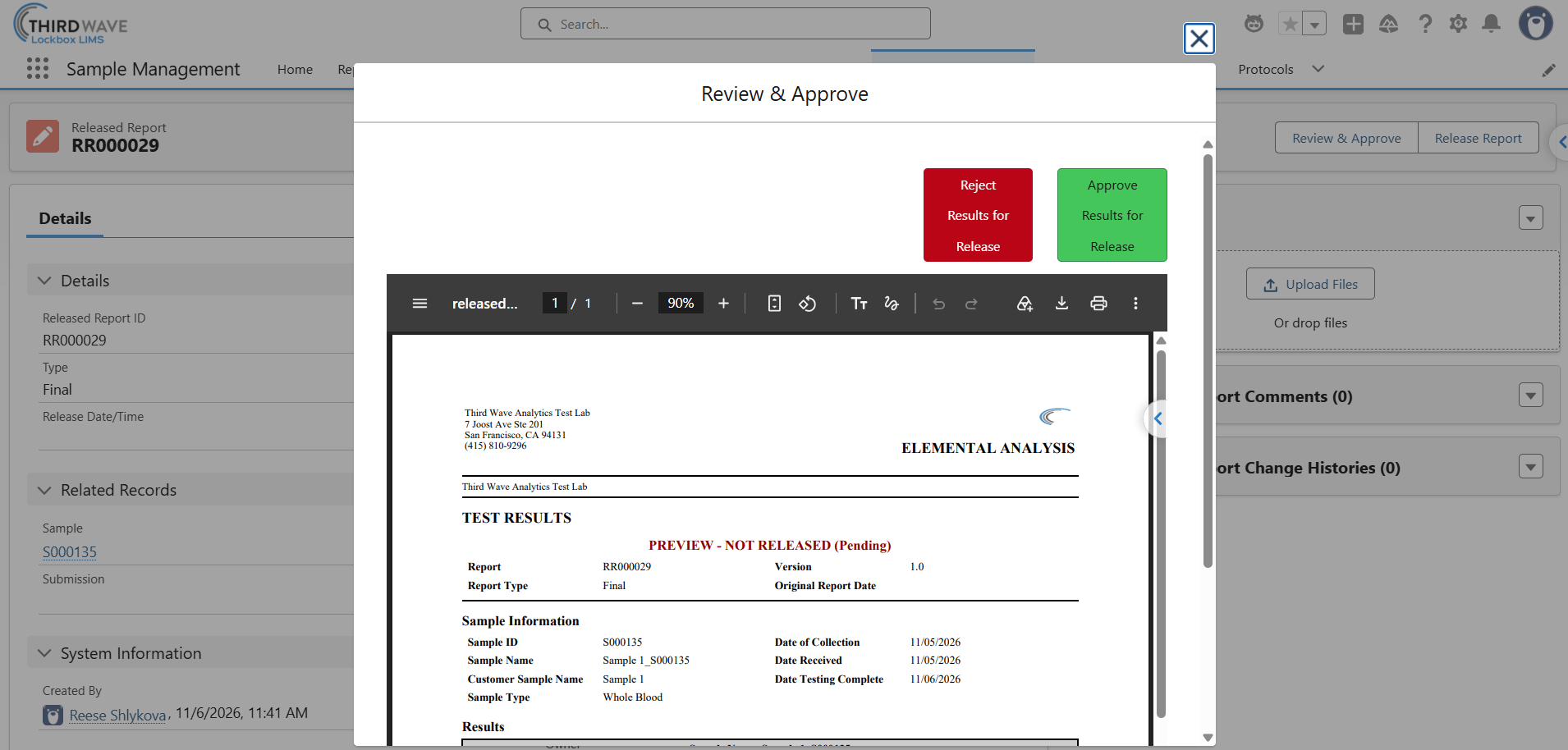
Click Review and Approve to open a preview of the report. The preview shows the sample data, the test results being reported, and the review and approval details, including the reviewer’s name and a date and timestamp. E-signatures can also be added to reports.
Step 3: Approve or Reject
After reviewing the PDF, the reviewer clicks Approve Results for Release or Reject Results for Release. On approval, the status changes to Approved and Lockbox logs the final reviewer. On rejection, the status changes to Rejected.
Step 4: Release the Report
Click Release Report. Lockbox displays a message explaining what happens on release: the status is set to Released, the release date and time are captured, and the PDF is attached to the Released Report record. Click Release to confirm.
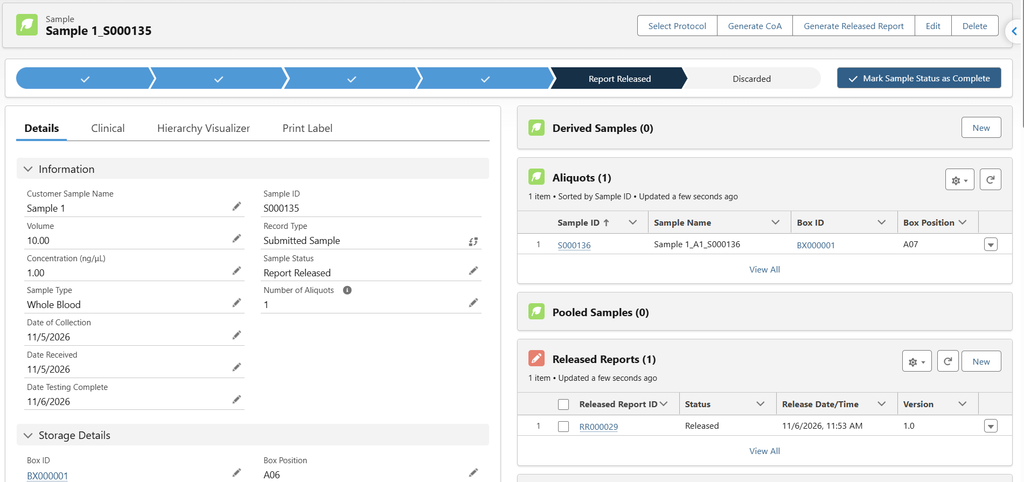
From the final Released Report, you can download the PDF or share it. For example, you can share it with external users through the customer portal. Back on the sample record, the Released Report appears in the related list, and you can mark the sample status as Report Released.
The demonstration in this post uses a single reviewer. If your lab needs a more complex review and approval pathway, Lockbox can be configured to support one.
Adding Comments to a Report
Sometimes a report needs context that does not live in the sample data. For example, a sample may have arrived at room temperature, and you want the client to see that.
To add a comment, open the Released Report, go to the Released Report Comments related list, and click New. Enter the comment, and if it should appear on the PDF, select Show on Report. Click Save.
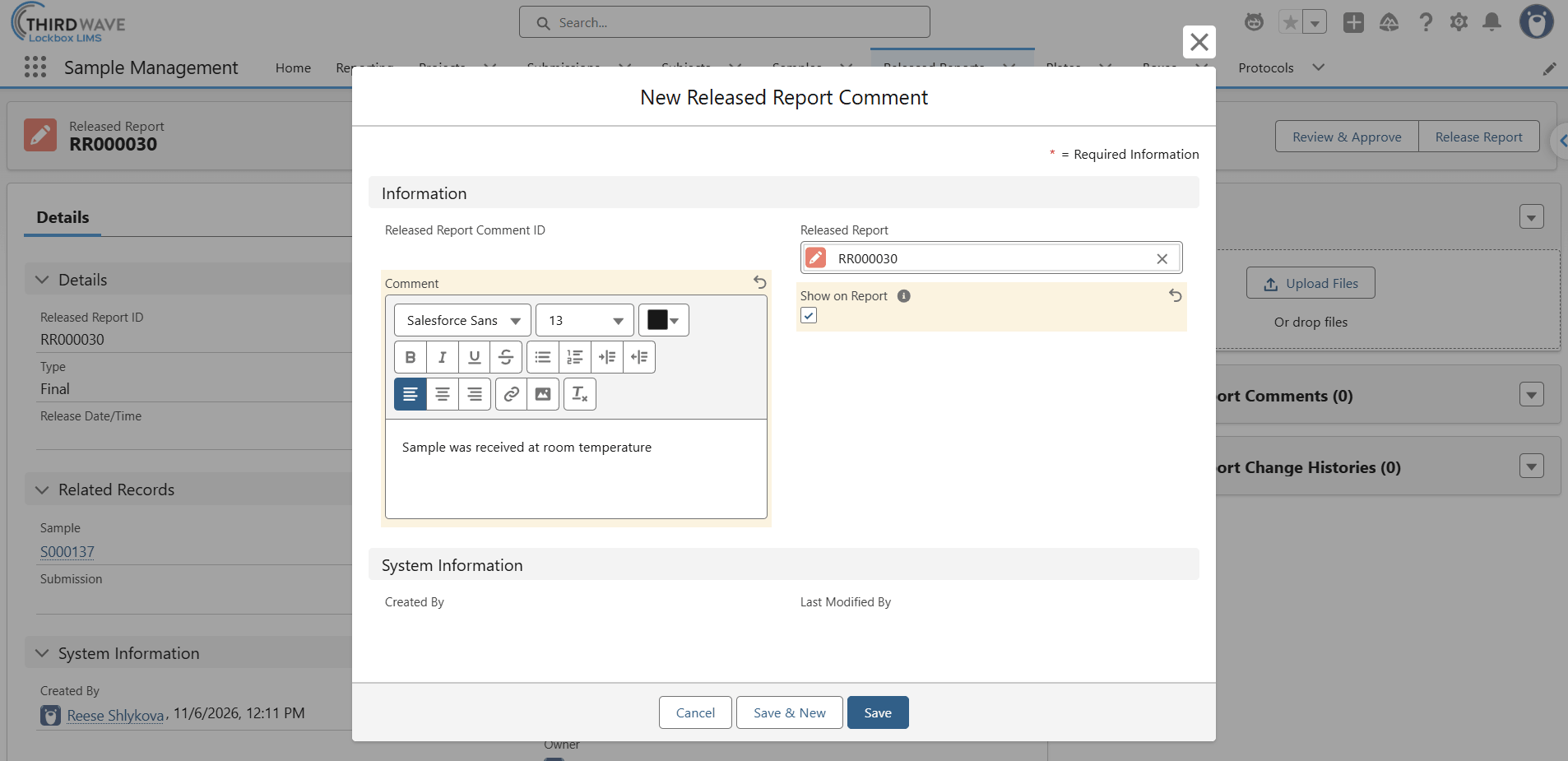
The Show on Report checkbox controls whether a comment is printed on the PDF. Comments that are not checked stay on the record as internal notes, which is useful for details such as “confirm with lab manager before release” that the client should not see. When you click Review and Approve, every comment with Show on Report checked appears in the preview, so your reviewer can confirm it before approving.
What Happens When Data Changes During Review?
This is where the workflow protects your lab. Imagine a report is pending review when someone notices the date of collection on the sample is wrong. The sample was collected one day earlier than recorded, and a report with the wrong date should not go to the client.
Lockbox tracks changes to the sample data after a report is generated. After the date is corrected on the sample, opening Review and Approve shows exactly what changed: the field name, the previous value, and the new value. In our example, the date of collection moved from November 6th to November 5th.
Because the report no longer matches the data, Lockbox removes the Approve button. A reviewer cannot approve an outdated report. The only option is to reject it.
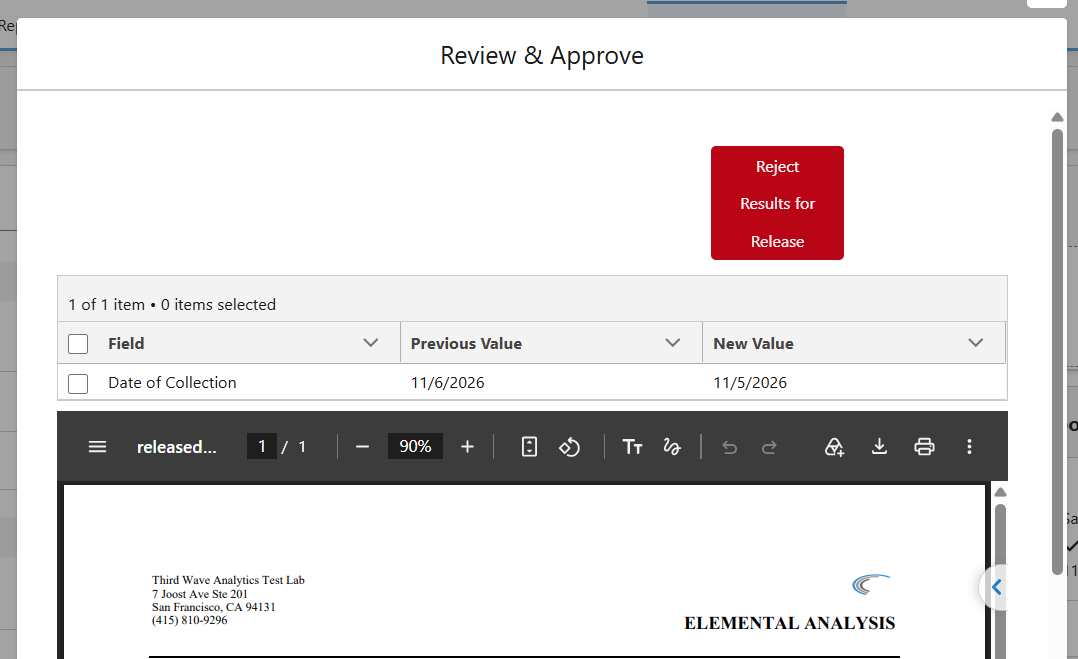
After the reviewer clicks Reject, Lockbox asks whether to generate a new Released Report now or wait:
- Generate Now creates the new version immediately so it can be reviewed right away.
- Wait gives your team time to update any other data that needs to change first. A new report can be generated manually from the source record afterward.
The new report is created as version 1.1, with the corrected date reflected in the PDF. The reviewer approves it and releases it as usual. The sample record keeps the history of both reports: the rejected version 1.0 and the released version 1.1.
During configuration of the Released Report feature, your team selects which fields are tracked for changes, so the controls match what matters on your reports.
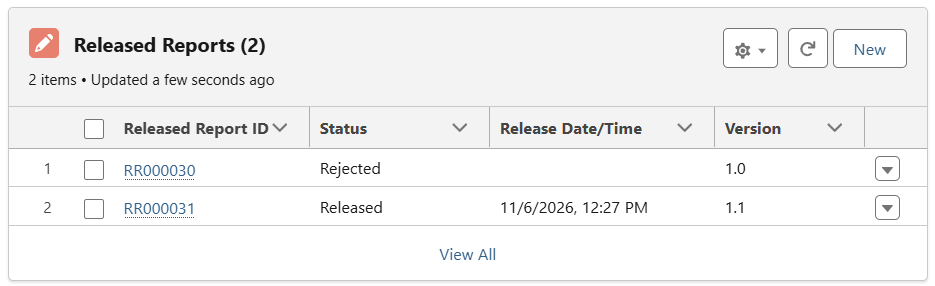
Amended and Addended Reports After Release
Data can also change after a report has been released. A result may need to be corrected, or a new test result may be entered later. Lockbox handles both with a revision workflow that keeps the original report intact.
When you click Generate Released Report on a sample that already has a released report, Lockbox detects it and asks which type of revision you are creating:
- Amended: corrects or changes existing information from the original report.
- Addended: adds new information or results that were not available previously, such as a new test result.
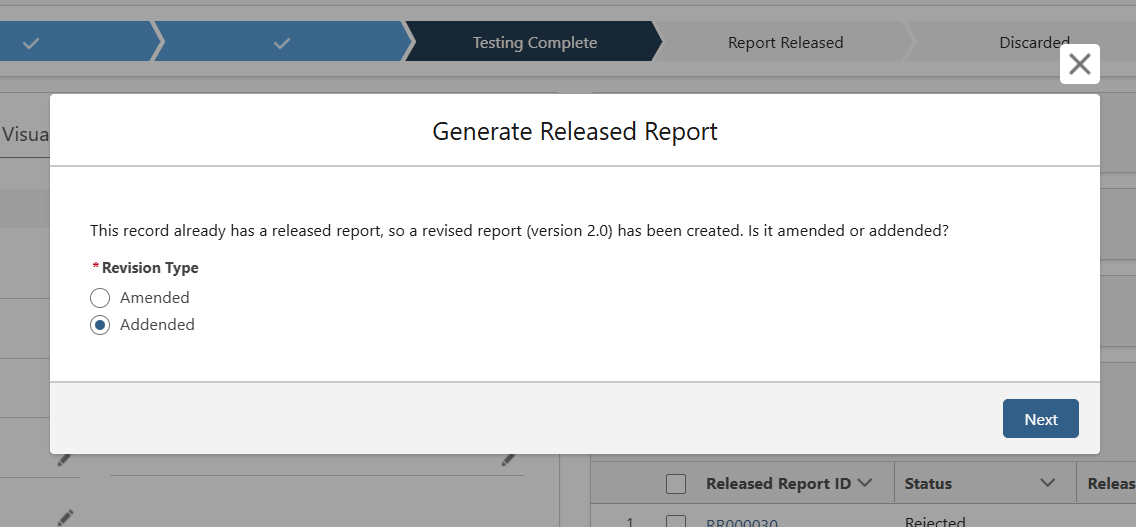
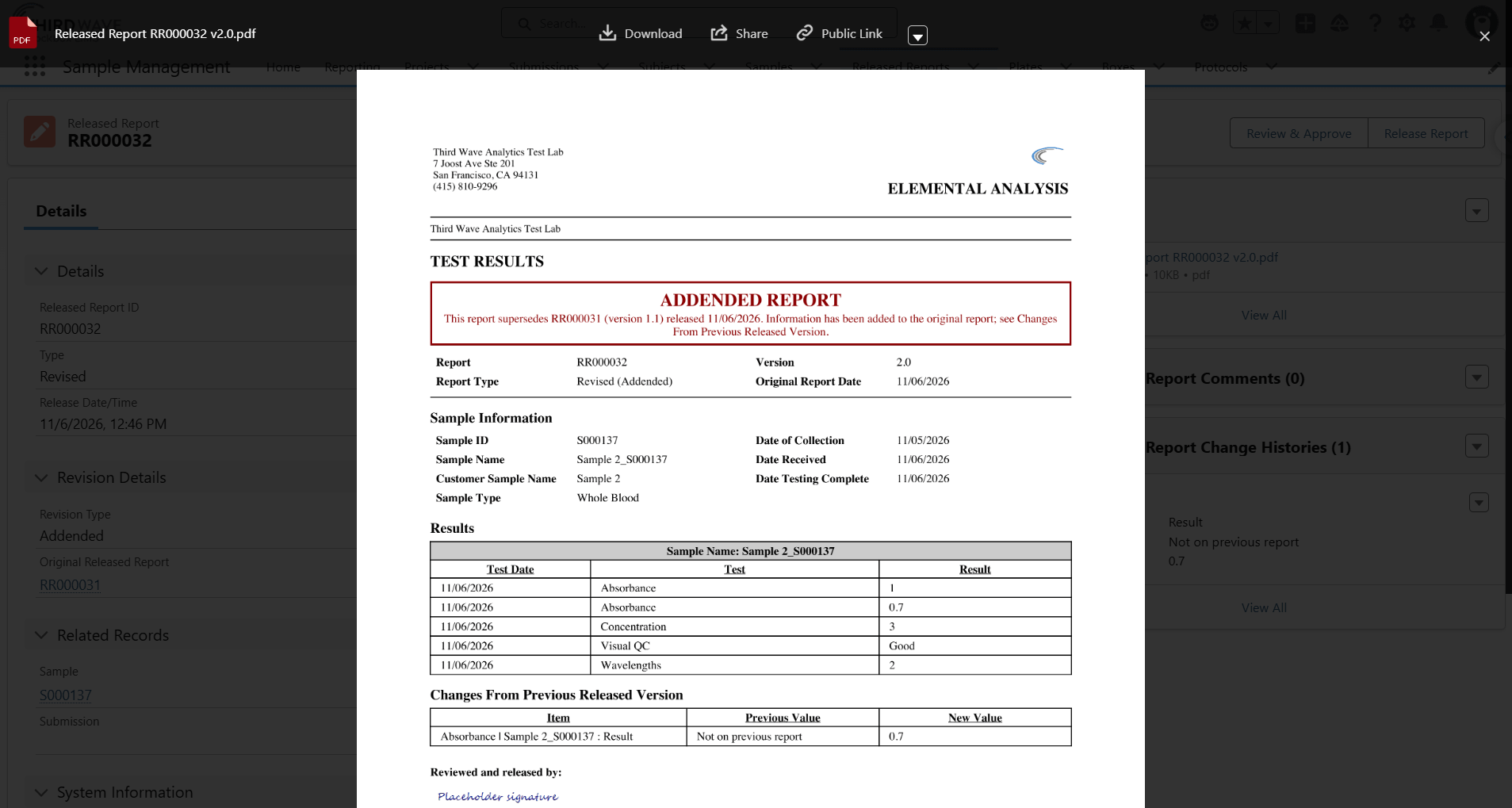
After you select the revision type and click Next, Lockbox creates the new Released Report as version 2, links it to the previous released report, and records the differences in the change history. For an addended report, the change history shows the new test result and notes that it was not on the previous report.
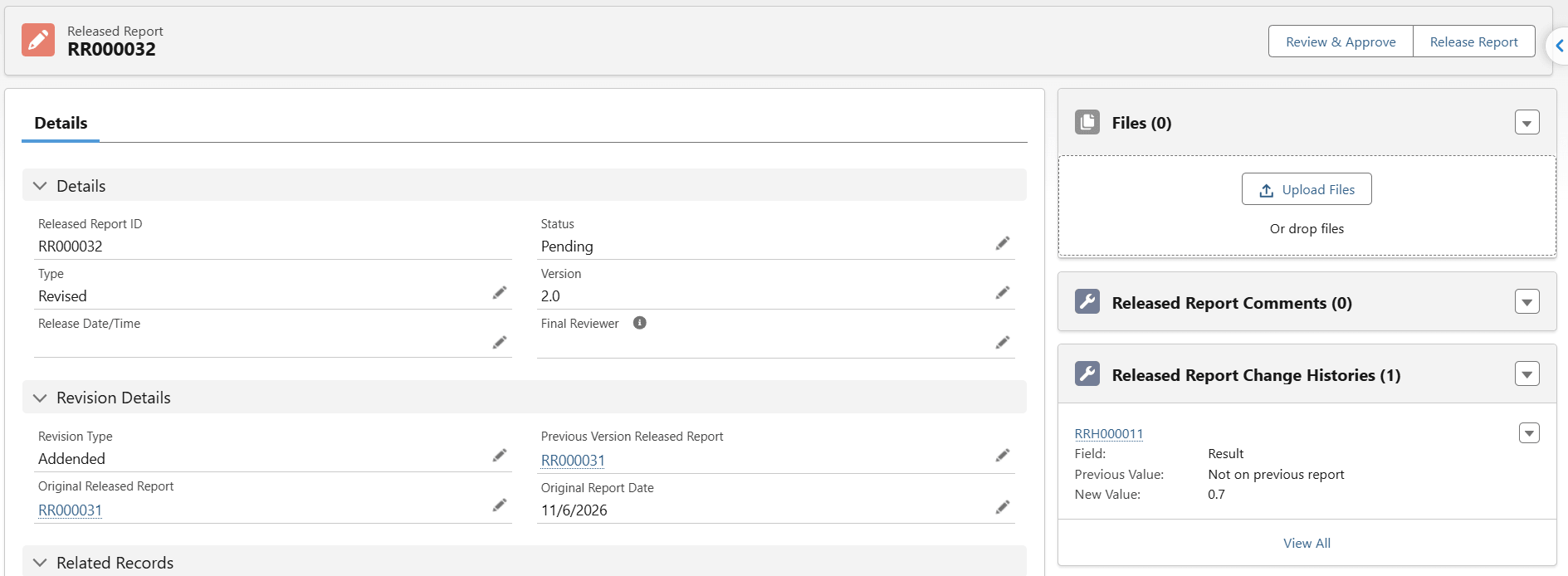
The PDF itself is marked to match. It carries language identifying it as amended or addended, references the report it supersedes, and includes a “Changes From Previous Released Version” table. Anyone who reads the revised report can see what changed and why. The report is then reviewed, approved, and released like any other.
Built to Fit Your Lab’s Reporting Requirements
Like all other Lockbox LIMS objects, the Reporting capabilities are also customizable to your use case. Here is a summary of what can be configured around the Released Report workflow:
- Report design and content: the layout and data in the PDF are configured for your use case.
- Source objects: generate reports from samples, requisitions, patients, submissions, or other Lockbox objects.
- Tracked fields: choose which fields trigger a change flag during review.
- Review pathways: configure a single reviewer or a more complex review and approval process.
- E-signatures: add signatures and reviewer timestamps to the report.
- External sharing: deliver released reports to customers through the customer portal.
The Bottom Line
With Released Reports, Lockbox LIMS makes review and approval part of the system instead of a side process. Every report has a status, a version, a reviewer, and a release timestamp. Changes to the underlying data are flagged before a report can be approved. Corrections and new results become linked, clearly labeled revisions rather than silent replacements. The result is a complete history of what was reported, when, and who approved it.